> ## Documentation Index
> Fetch the complete documentation index at: https://docs.nano-gpt.com/llms.txt
> Use this file to discover all available pages before exploring further.
# Fluent
> Use NanoGPT models and MCP tools in Fluent for macOS
# Fluent Integration
Use this guide to connect [Fluent](https://fluentmac.app/) to NanoGPT. Fluent can use NanoGPT as a model provider and can also run the NanoGPT MCP server as an integration.
## Add NanoGPT as a model provider
1. Get your API key from [nano-gpt.com/api](https://nano-gpt.com/api)
2. Open Fluent Settings and go to **Models**.
3. Under **Partners**, select **NanoGPT**.
4. Enter your NanoGPT API key.
5. Click **Refresh** to load the available NanoGPT models.
6. Choose the model you want to use, then click **Make Default** if you want Fluent to use it by default.
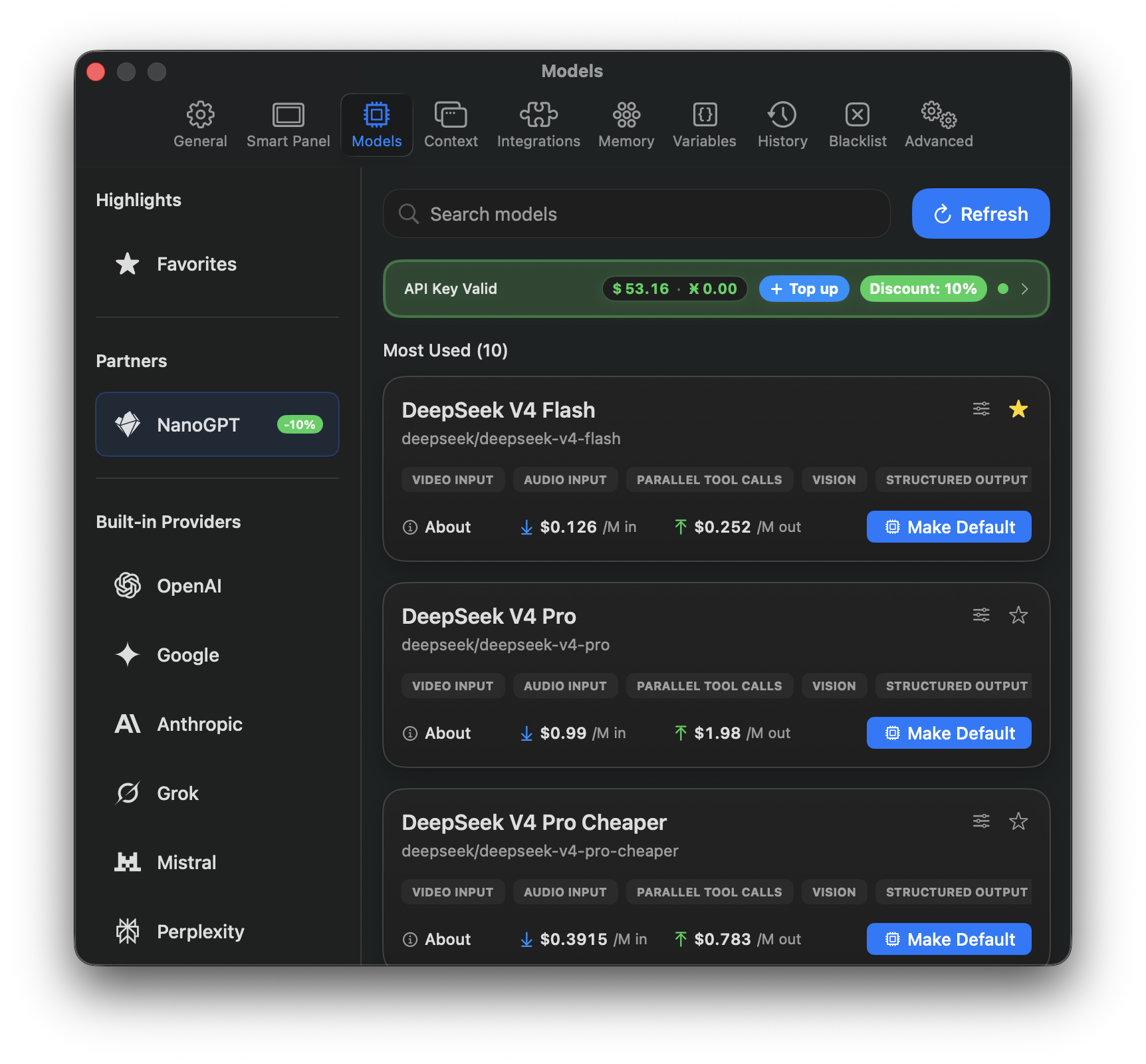 Fluent shows NanoGPT models in its model list after your key is added. You can switch models from Fluent just like any other provider.
Fluent may show a NanoGPT partner discount in the Models screen. Check Fluent for the current discount before choosing a model.
## Add NanoGPT MCP
NanoGPT MCP gives Fluent access to NanoGPT tools such as chat, balance checks, image generation, web search, URL scraping, YouTube transcription, and model listing.
1. Open Fluent Settings and go to **Integrations**.
2. Click **Add Integration**, then choose **Configure Manually**.
3. Set the integration name to `NanoGPT`.
4. Set **Type** to **Stdio (Local Process)**.
5. In **Command**, enter:
```bash theme={null}
npx
```
6. In **Args**, enter:
```bash theme={null}
-y @nanogpt/mcp
```
7. Add an environment variable:
* Key: `NANOGPT_API_KEY`
* Value: your NanoGPT API key
8. Save the integration.
Fluent shows NanoGPT models in its model list after your key is added. You can switch models from Fluent just like any other provider.
Fluent may show a NanoGPT partner discount in the Models screen. Check Fluent for the current discount before choosing a model.
## Add NanoGPT MCP
NanoGPT MCP gives Fluent access to NanoGPT tools such as chat, balance checks, image generation, web search, URL scraping, YouTube transcription, and model listing.
1. Open Fluent Settings and go to **Integrations**.
2. Click **Add Integration**, then choose **Configure Manually**.
3. Set the integration name to `NanoGPT`.
4. Set **Type** to **Stdio (Local Process)**.
5. In **Command**, enter:
```bash theme={null}
npx
```
6. In **Args**, enter:
```bash theme={null}
-y @nanogpt/mcp
```
7. Add an environment variable:
* Key: `NANOGPT_API_KEY`
* Value: your NanoGPT API key
8. Save the integration.
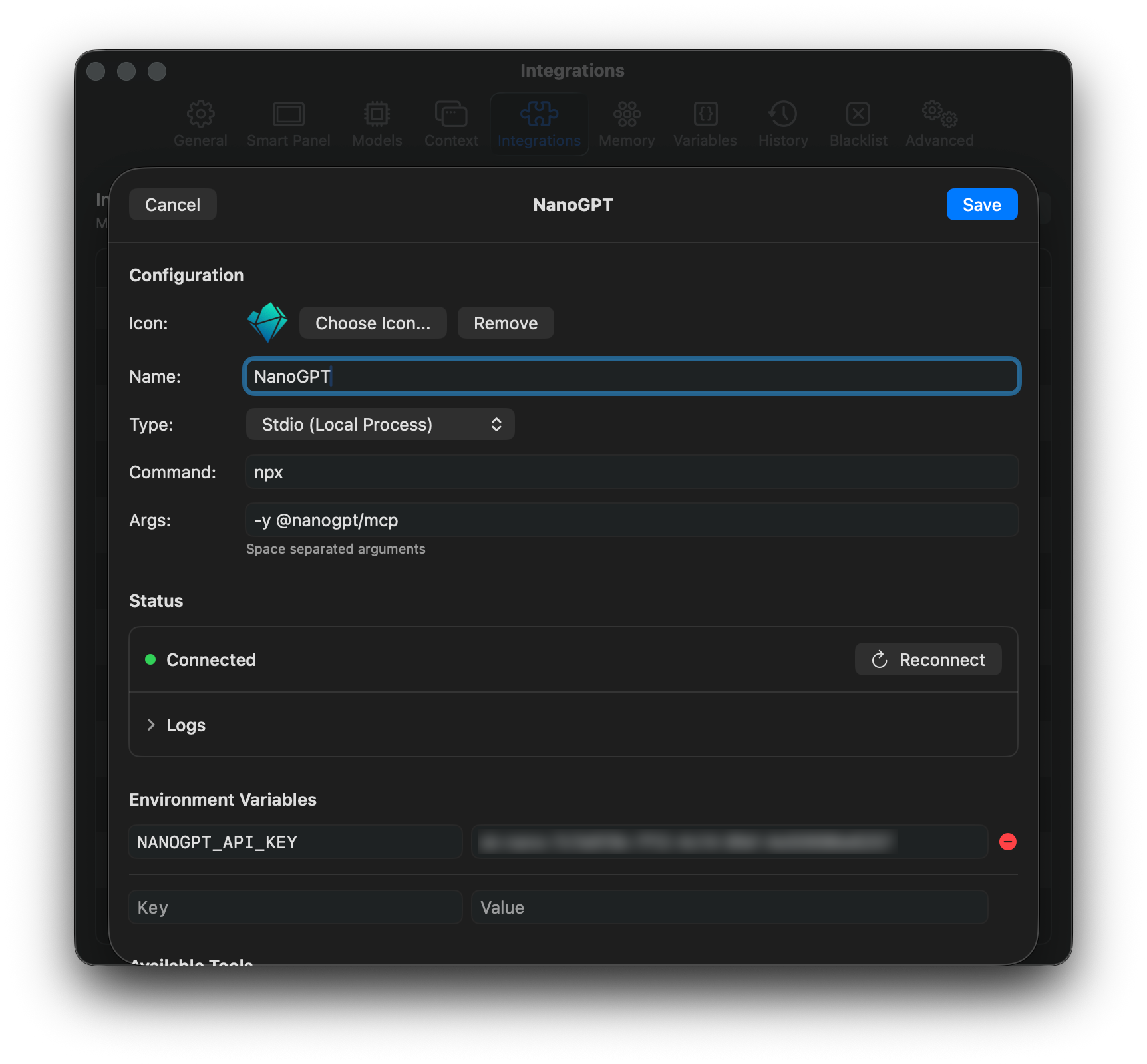 Once saved, Fluent should show the NanoGPT integration as connected.
## Notes
* You need Node.js 22.x or later for the NanoGPT MCP server.
* If Fluent does not connect, verify that `npx` is available in your shell and that `NANOGPT_API_KEY` is set on the integration.
* If you rotate your NanoGPT API key, update it in both the NanoGPT model provider settings and the NanoGPT MCP integration environment variables.
Once saved, Fluent should show the NanoGPT integration as connected.
## Notes
* You need Node.js 22.x or later for the NanoGPT MCP server.
* If Fluent does not connect, verify that `npx` is available in your shell and that `NANOGPT_API_KEY` is set on the integration.
* If you rotate your NanoGPT API key, update it in both the NanoGPT model provider settings and the NanoGPT MCP integration environment variables.