> ## Documentation Index
> Fetch the complete documentation index at: https://docs.nano-gpt.com/llms.txt
> Use this file to discover all available pages before exploring further.
# RisuAI
> Using NanoGPT with RisuAI for chat and character-based conversations
# RisuAI Integration
Use this guide to connect RisuAI to NanoGPT so you can run your chats through NanoGPT models.
## Before You Start
1. Create or log in to your NanoGPT account.
2. Generate your API key at [nano-gpt.com/api](https://nano-gpt.com/api).
3. Open [risuai.xyz](https://risuai.xyz/).
If RisuAI shows onboarding, skip it. NanoGPT is configured in the main settings.
## Step-by-Step Setup
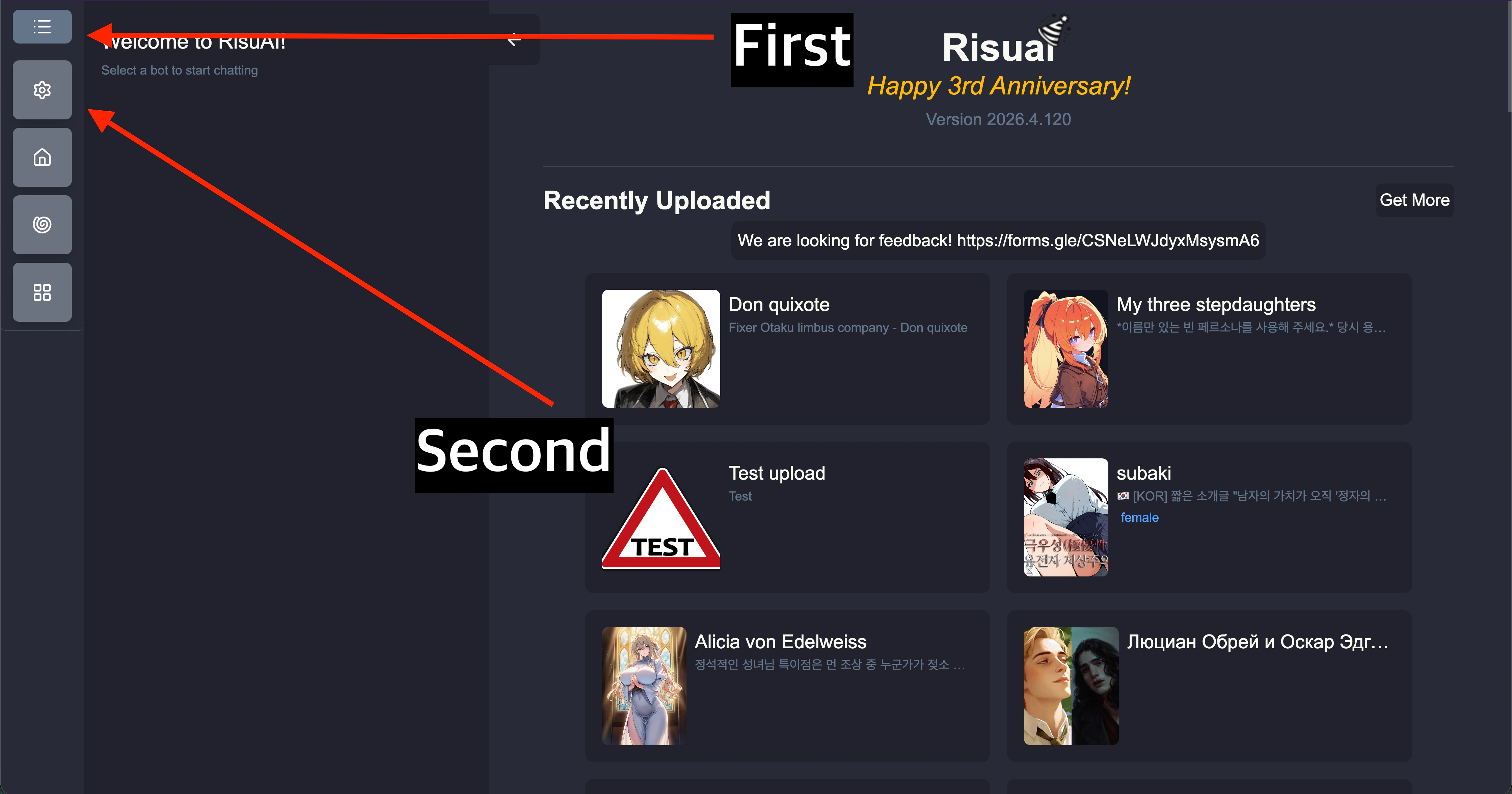
1. From the RisuAI home screen, open the left menu (hamburger icon), then go to **Settings**.
 2. In **Settings**, open the **Chat Bot** panel.
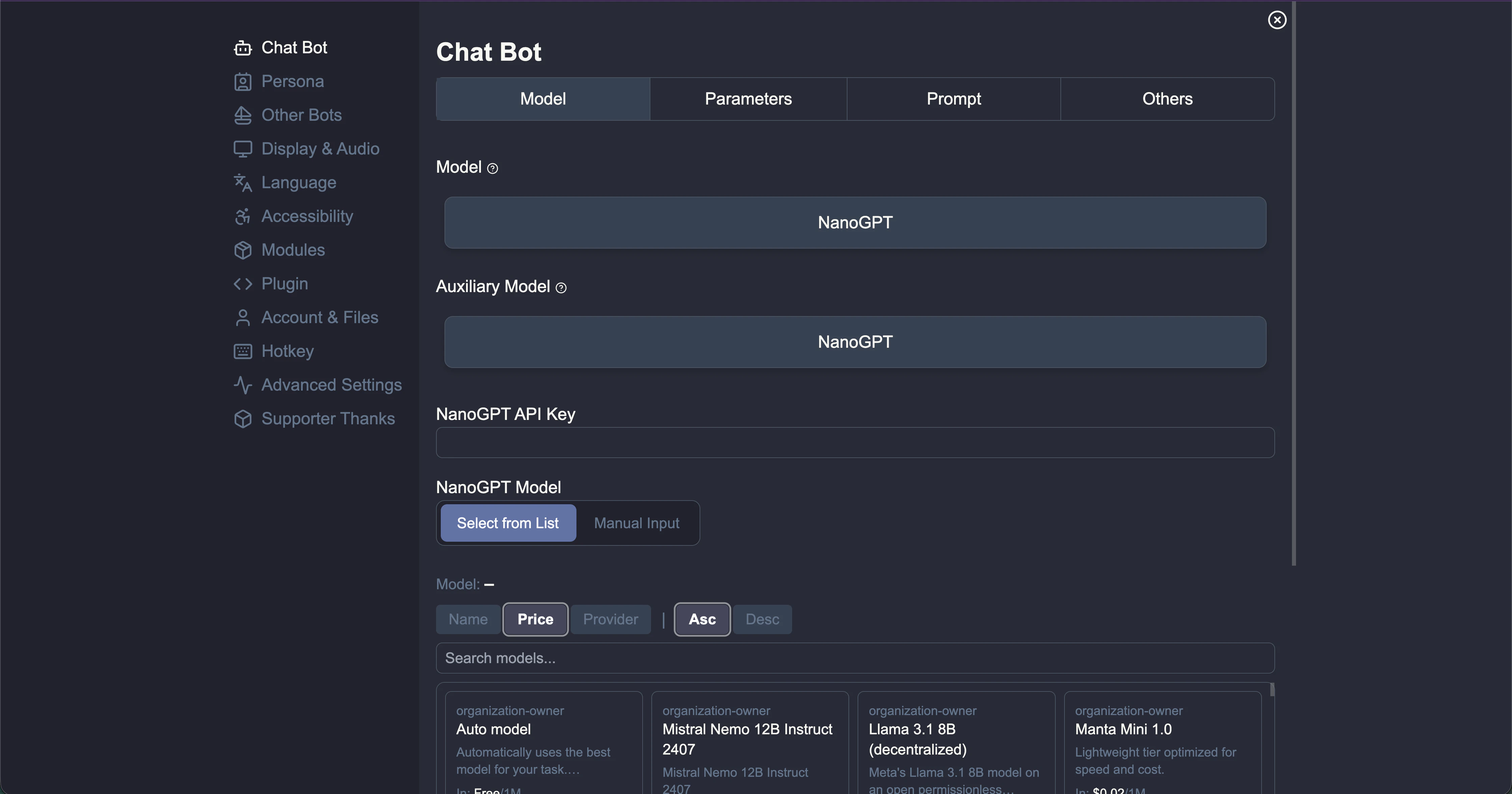 3. Set both of these fields to **NanoGPT**:
* **Model**
* **Auxiliary Model**
3. Set both of these fields to **NanoGPT**:
* **Model**
* **Auxiliary Model**
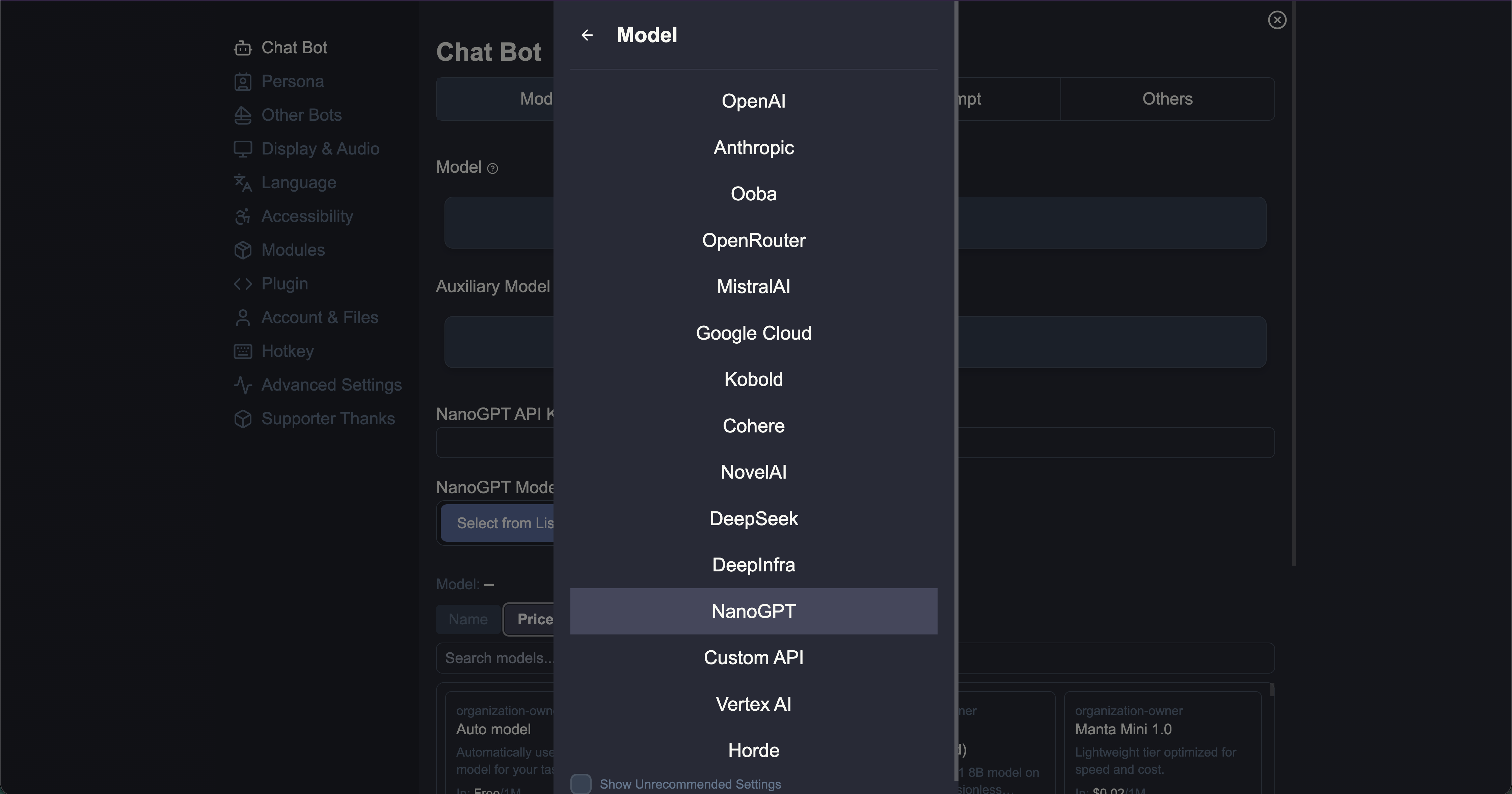 4. Paste your key from [nano-gpt.com/api](https://nano-gpt.com/api) into **NanoGPT API Key**.
5. If you have a NanoGPT subscription, enable **Use subscription endpoint & models**.
* If this is not enabled, RisuAI uses pay-as-you-go mode by default.
4. Paste your key from [nano-gpt.com/api](https://nano-gpt.com/api) into **NanoGPT API Key**.
5. If you have a NanoGPT subscription, enable **Use subscription endpoint & models**.
* If this is not enabled, RisuAI uses pay-as-you-go mode by default.
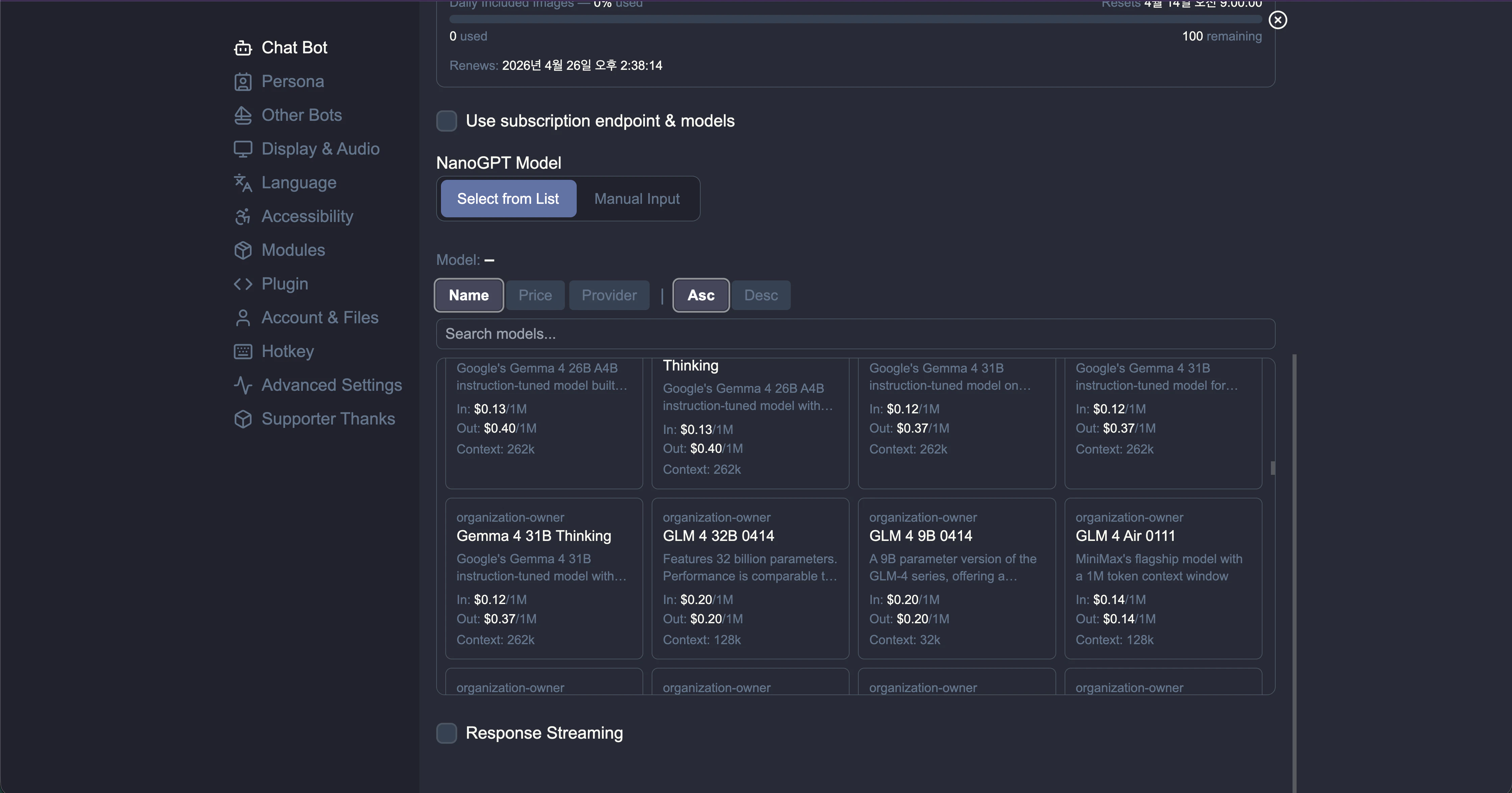 6. Choose your model in **NanoGPT Model**:
* **Select from List** to browse available models.
* **Manual Input** if the model list does not load or you want to enter a model ID directly.
7. Optional: enable **Response Streaming** for streamed output.
## Pay-As-You-Go Provider Selection
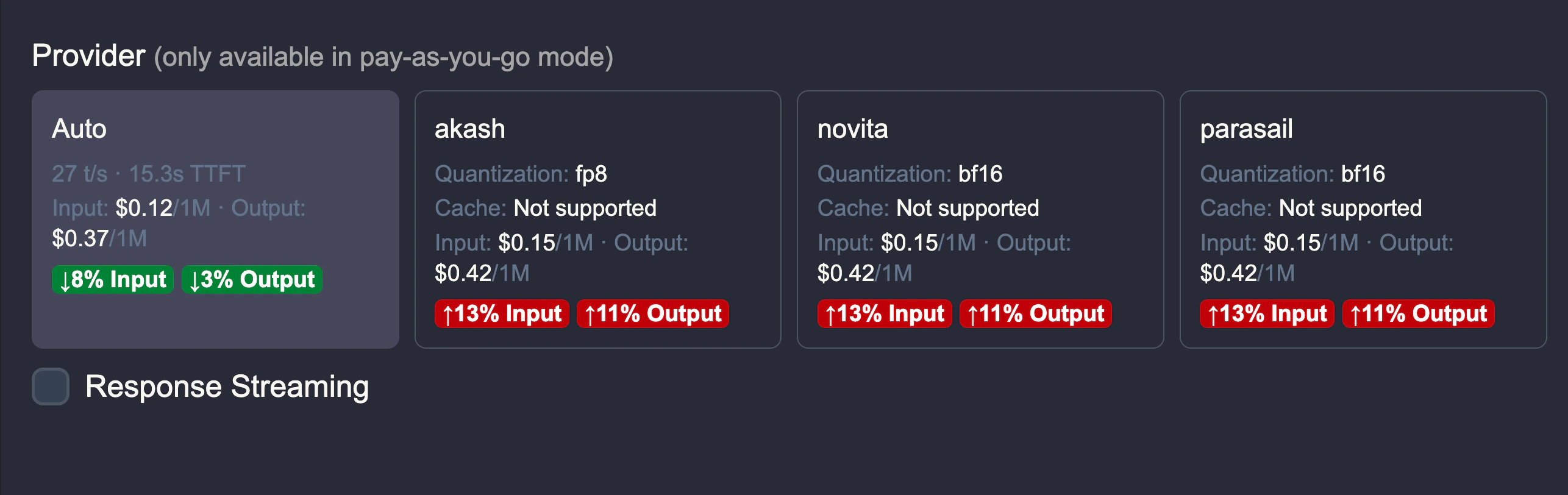
In pay-as-you-go mode, some models expose multiple providers. RisuAI will show provider options with pricing so you can compare and choose.
6. Choose your model in **NanoGPT Model**:
* **Select from List** to browse available models.
* **Manual Input** if the model list does not load or you want to enter a model ID directly.
7. Optional: enable **Response Streaming** for streamed output.
## Pay-As-You-Go Provider Selection
In pay-as-you-go mode, some models expose multiple providers. RisuAI will show provider options with pricing so you can compare and choose.
 ## Quick Troubleshooting
* Model list not loading: switch to **Manual Input** and enter the model ID.
* Unexpected pricing mode: verify whether **Use subscription endpoint & models** is enabled.
* Auth errors: confirm your NanoGPT API key is valid and pasted without extra spaces.
## Quick Troubleshooting
* Model list not loading: switch to **Manual Input** and enter the model ID.
* Unexpected pricing mode: verify whether **Use subscription endpoint & models** is enabled.
* Auth errors: confirm your NanoGPT API key is valid and pasted without extra spaces.